 Rivet Files
A Linux file manager in the same vein as Dolphin, Nemo, Thunar, and Caja. It is written in Rust, draws with egui, and does not use GTK or Qt. You can fill the window with every bar and panel, or keep a short toolbar and the files.
The latest download is 0.6.0, published 15 November 2026. The builds are x86_64. On main, the changelog still lists split view, custom actions, thumbnails beyond pictures, and copying files to other programs under Unreleased. Those are in the current source and in the README. They may not be in the 0.6.0 files yet.
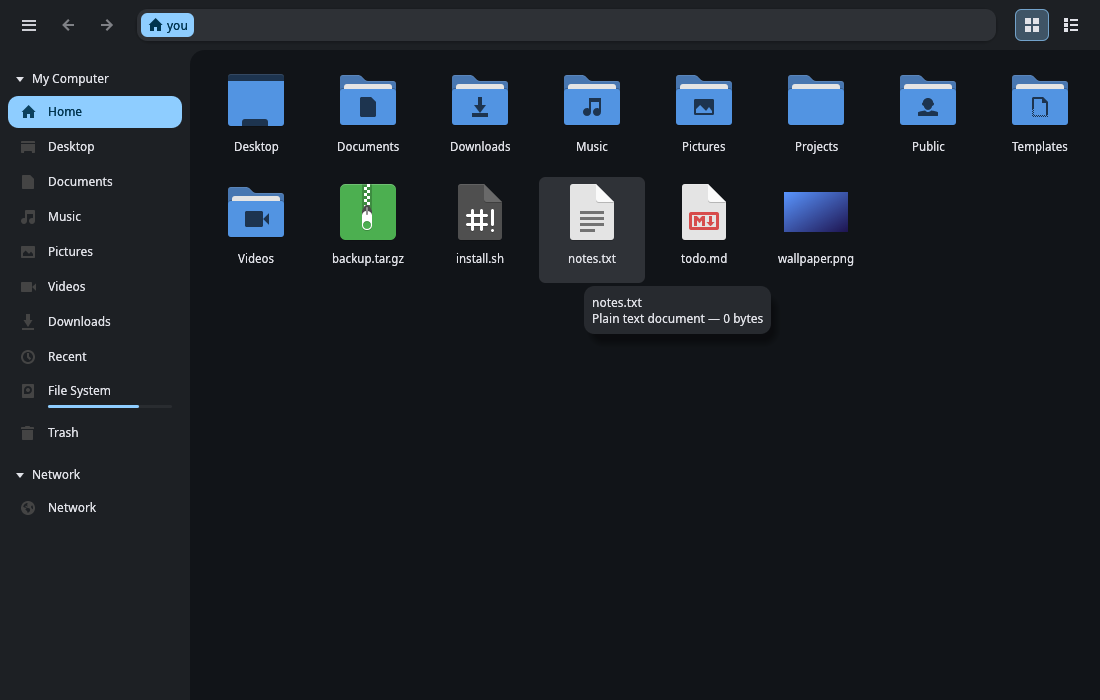 Open full size.
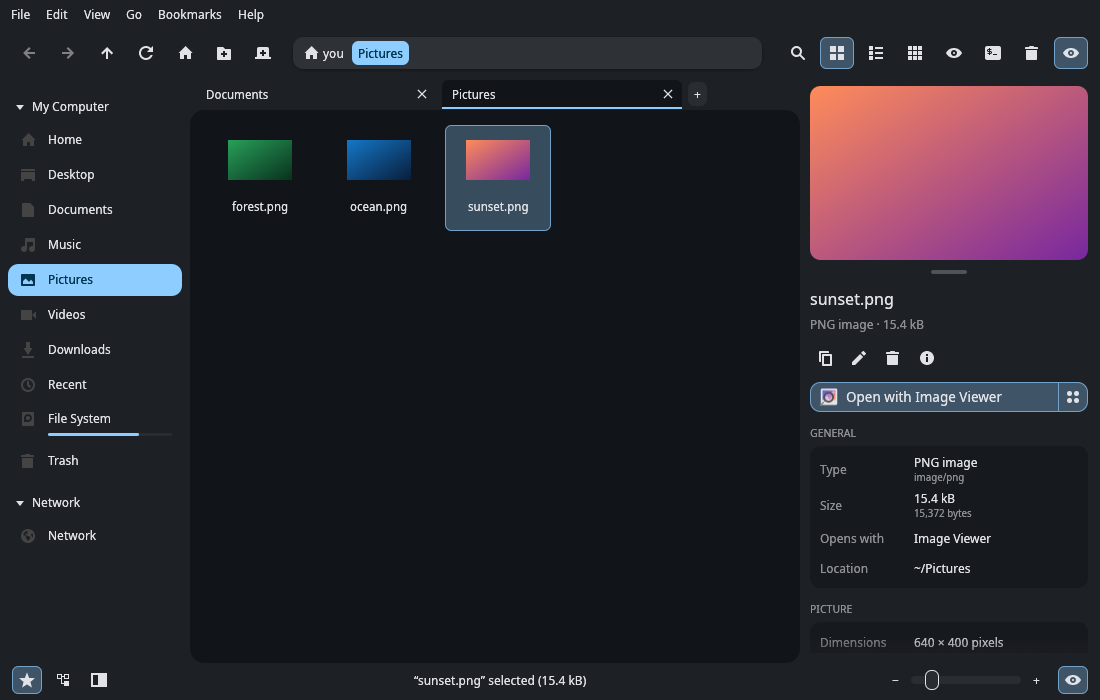 Open full size.
Getting around
- Stepped path bar
- Each folder in the path is its own button. Click one to jump there.
- Fuzzy suggestions
- Type a path and matching folders appear, even from a few scattered letters. Tab completes.
- Three views
- Icons, list, and compact, with tabs.
- Split view (F3)
- Two folders side by side. Drag between them, or copy or move to the other pane. F6 switches panes.
- Sidebar
- Places, bookmarks, drives with usage bars, and network shares, or a folder tree. Left or right.
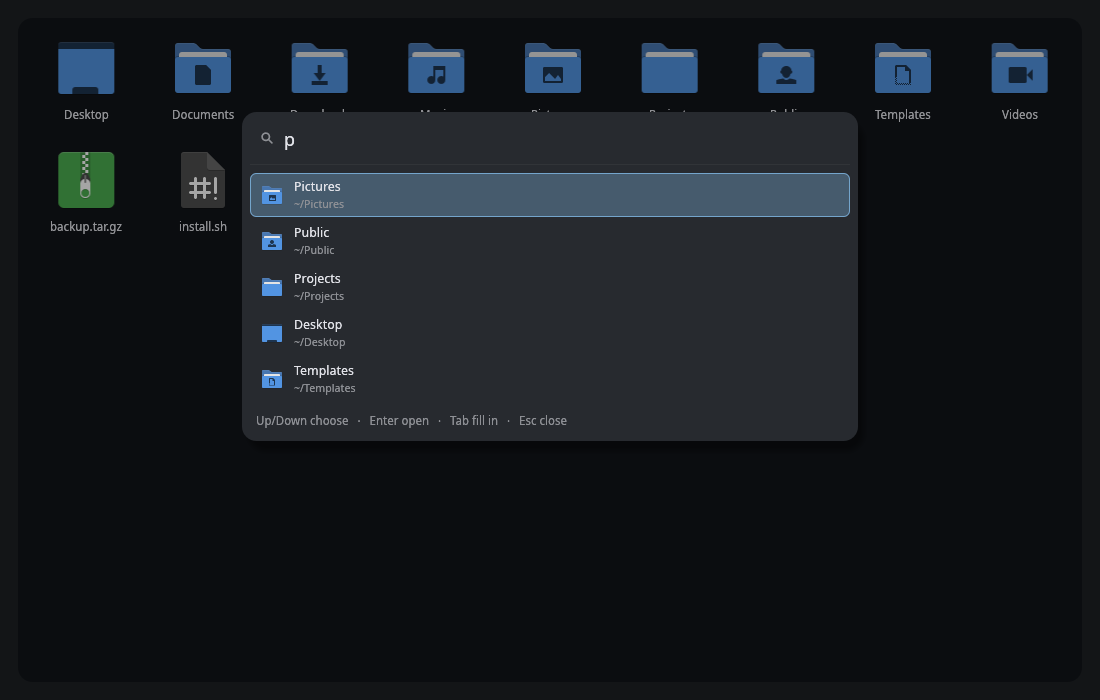
- Quick Open (Ctrl+P)
- Fuzzy-find a folder and open it. Recent folders, places, bookmarks, drives, and folders under Home.
- Quick Actions (Ctrl+Shift+P)
- Every command and setting in one searchable list. Try "tree", "theme dark", or "zen".
- Filters
- Limit a folder by type, name, or date. Global, for this folder, or for this folder and below. Ctrl+Shift+F.
- Search
- Type to filter the folder. Enter searches subfolders too.
- Vim keys
- Optional, off until you turn them on.
hjkl,ggandG, counts, visual mode,yyddp. - Network
- Browse servers, open SMB shares, or connect to an address.
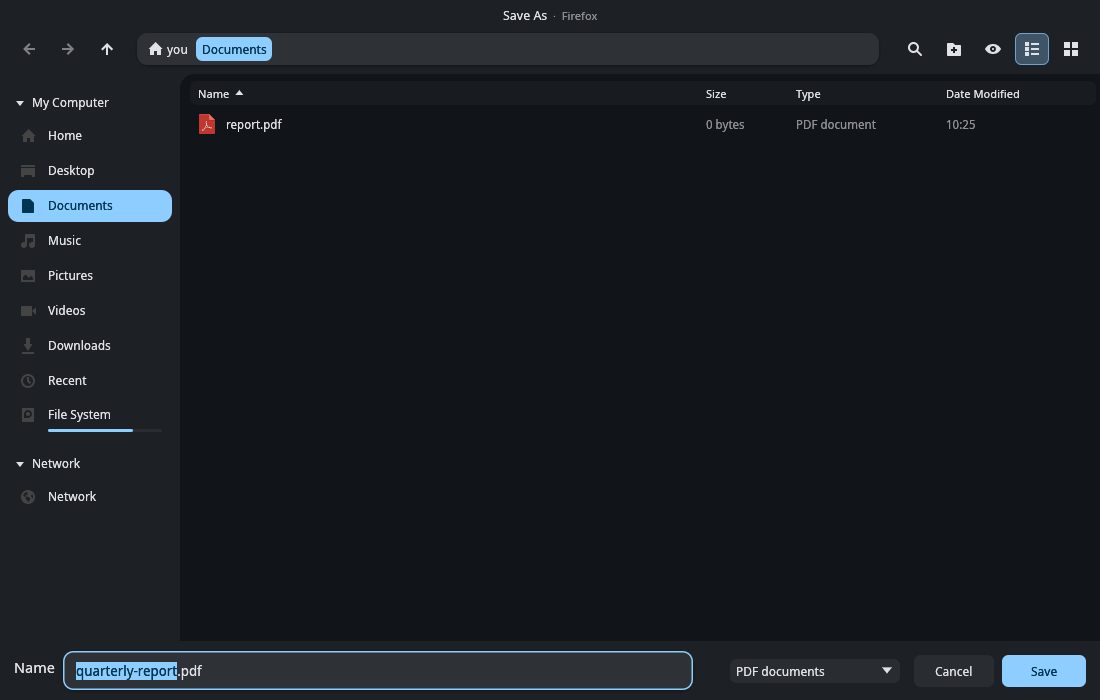
- File picker
-
Rivet can be the Open and Save window other apps show, through xdg-desktop-portal. Turn it on in
Preferences, System, File picker, or run
rivet --file-picker on. Not available inside Flatpak. The picker you had stays as the fallback.
 Open full size.
Working with files
- The basics
- Copy, cut, paste, and drag and drop, including out to a browser or chat and across to another file manager or a terminal. Rename. Trash, with restore.
- Undo and redo
- Copies, moves, renames, Trash, new items, compress, and extract. Ctrl+Z and Ctrl+Shift+Z.
- Bulk rename
- Insert text, dates, or numbers, remove, replace, change case. Every new name is previewed first. F2 with several files selected.
- Convert and resize
- Pictures, video, and audio to other formats, and resize pictures. Needs ffmpeg. It can be turned off.
- Compress and extract
- zip, tar.gz, tar.xz, tar.zst, and 7z.
- Open With
- A searchable list of apps, and a way to set a new default.
Previews
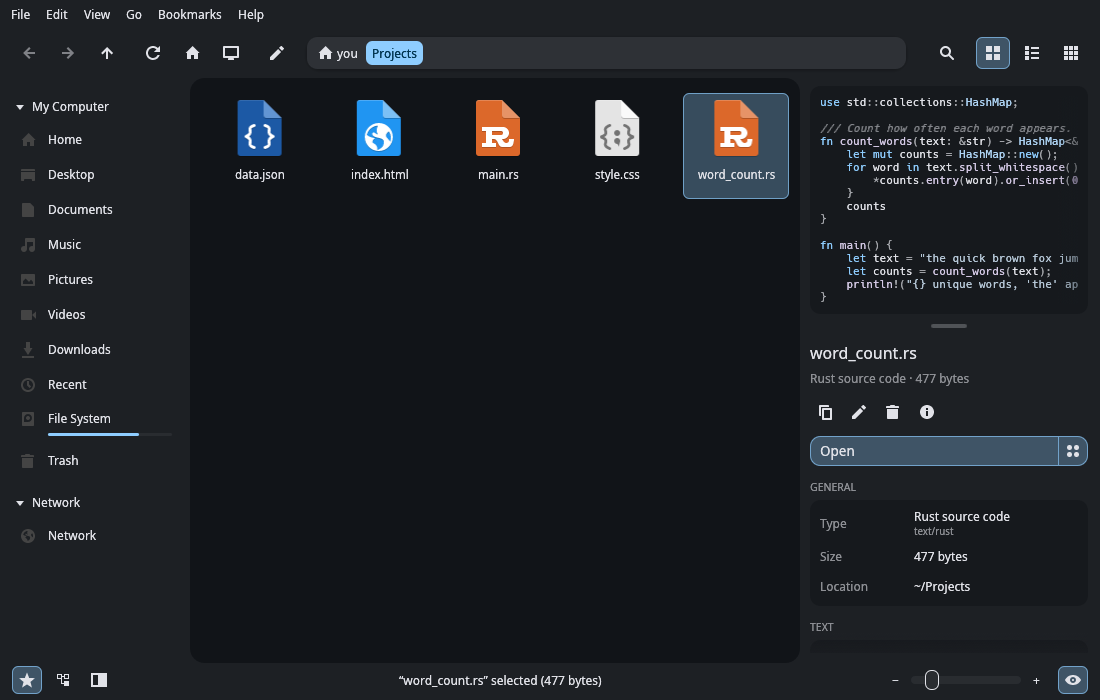
- Thumbnails
-
Pictures, videos, PDFs, fonts, office files, and more. Rivet uses the thumbnailers already on
the system and shares
~/.cache/thumbnailswith other file managers. - Peek (F11)
- A side panel: large previews, video playback, syntax-highlighted code in the theme's colors, and file details. Left or right. Drag the grip under the preview to change its height.
- Preview (Space)
- A full-window view. Left and right step through the folder's pictures, videos, and text.
 Open full size.
Customizing
- Desktop colors
- Follows Matugen, Noctalia, Dux Shell, and GTK themes as they change. The README says it restyles within a second.
- Built-in icons
- Recolored from the palette: primary, secondary, or tertiary. Or use the system icon theme.
- Layout
- Toolbar top or bottom. Status bar top, bottom, or off (F8). Your own toolbar buttons, fonts, and text size. Optional menu bar (Ctrl+M).
- Zen mode (F12)
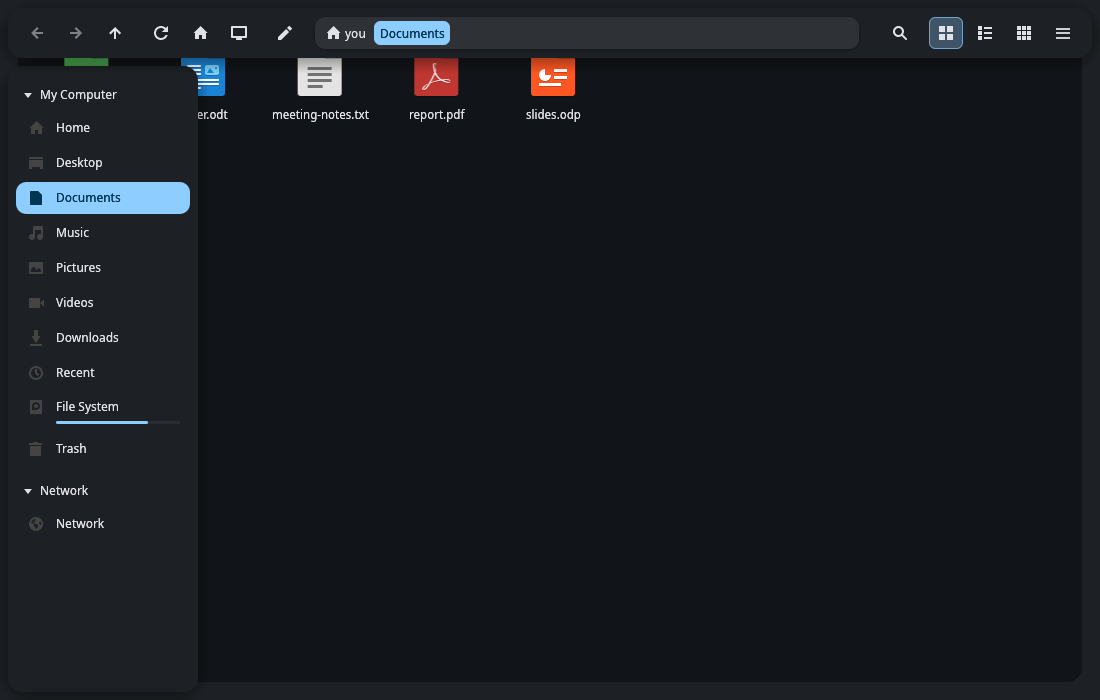
- The files fill the window. The toolbar, sidebar, and Peek slide in at the edges.
- Terminal mode (F7)
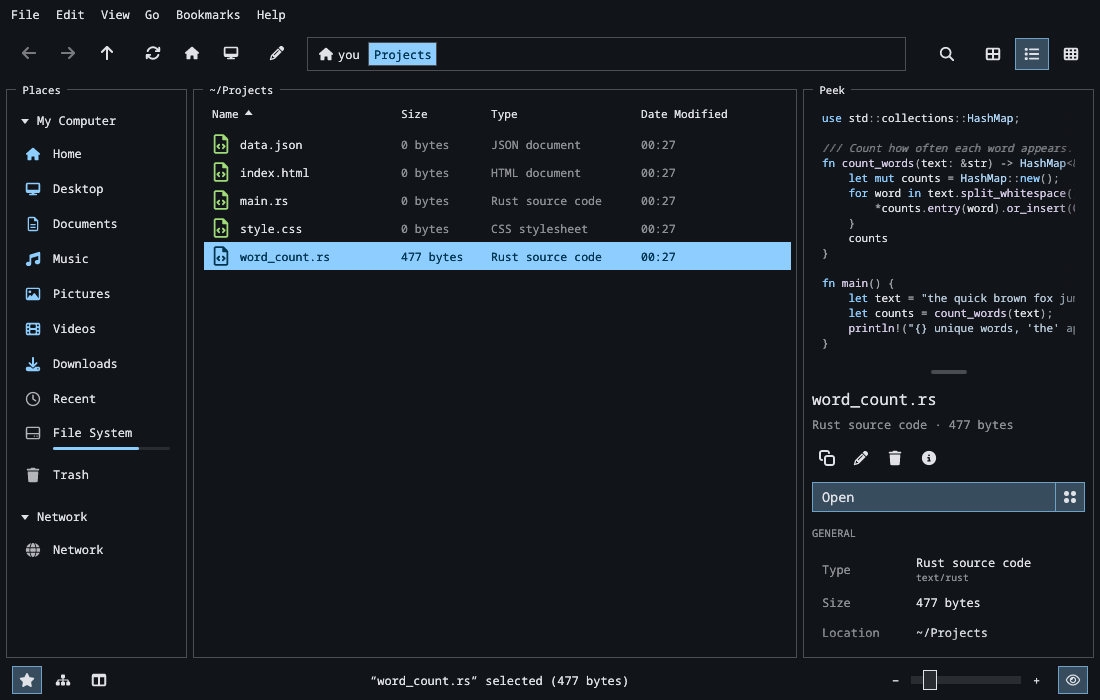
- Monospace text, Nerd Font icons colored by file type, and panels drawn as boxes. The layout and features stay the same. It uses the monospace font from Preferences, Appearance, Typography, and any installed Nerd Font. Without a Nerd Font, the icons stay as they are.
- Modules
- Turn off Bulk Rename, Convert and Resize, or custom actions.
- Custom actions
-
Your own commands in the right-click menu. One small
.actionfile each, in~/.local/share/rivet/actions. - Title bar
- The desktop's, or Rivet's own.
 Open full size.
 Open full size.
 Open full size.
A custom action
Preferences, Modules, Add an Example writes a starter file. The README's example looks like this. The full list of codes is in the repository README.
[Action]
Name=Shrink Pictures
Icon=image-x-generic
Exec=mogrify -resize 50% %F
For=some
Types=image/*
Requires=mogrify
Install
Grab 0.6.0 from the release. Each file has a .sha256 next to it.
- Rivet_Files-0.6.0-x86_64.AppImage (checksum)
- rivet-files-0.6.0-x86_64-linux.tar.gz (checksum)
- rivet-files.flatpak
AppImage
One file. It includes the keyboard libraries below, and runs on Ubuntu 22.04, Debian 12, and newer.
chmod +x Rivet_Files-0.6.0-x86_64.AppImage
./Rivet_Files-0.6.0-x86_64.AppImage
Preferences, System, Add Rivet to the app launcher puts it in your menus.
Archive
Unpack and run install.sh. It installs for the current user, with no root. Add
--default to make Rivet the default file manager. Same glibc baseline as the AppImage.
Install the libraries below if the desktop does not already have them.
tar xzf rivet-files-0.6.0-x86_64-linux.tar.gz
cd rivet-files-0.6.0-x86_64-linux
./install.sh
install.sh copies the program to ~/.local/bin/rivet, writes
~/.local/share/applications/rivet-files.desktop, and installs icons under
~/.local/share/icons. The script has no uninstall flag. Inside Rivet, Preferences,
System, App launcher, Remove takes the launcher entry back out. That deletes the desktop file and
the SVG icon Rivet wrote. It does not delete the binary or the PNG icons install.sh copied.
glibc
The 0.6.0 release notes describe a portable x86_64 build, linked against glibc 2.31 rather than the build machine's libc. The program's highest GLIBC symbol is 2.30. Counting the keyboard libraries in the AppImage, the files need glibc 2.33 or newer, which Ubuntu 22.04 and Debian 12 have. Older systems can build from source.
Libraries the window needs
Rivet talks to X11 or Wayland directly. It does not use GTK or Qt. A normal desktop already has
the display libraries. What a minimal install often lacks is the keyboard library loaded at
startup: libxkbcommon on Wayland, and libxkbcommon-x11 plus
libxcb-xkb on X11. If one is missing, Rivet prints the install command instead of
crashing. The AppImage already carries those three.
- Debian, Ubuntu:
sudo apt install libxkbcommon0 libxkbcommon-x11-0 libxcb-xkb1 - Fedora, RHEL:
sudo dnf install libxkbcommon libxkbcommon-x11 - Arch Linux:
sudo pacman -S libxkbcommon - openSUSE:
sudo zypper install libxkbcommon0 libxkbcommon-x11-0
Flatpak
A .flatpak bundle is attached to the GitHub release once CI has built it. 0.6.0 has one.
It is not on Flathub until that submission is done. The manifest and the steps are in
packaging/README.md. The app id there
is io.github.ulinaaron.rivet-files.
Inside the sandbox, home, other disks, Trash, and ~/.config theme files are the real
ones. Host /usr and /etc are under Host system files
(/run/host). Open With a specific program, and Open in Terminal, do not launch host
programs from the sandbox. Unmount can fail. The file picker is not available in the Flatpak.
Arch Linux
PKGBUILDs for rivet-files-bin (the release tarball) and rivet-files
(built from the git tag) are in packaging/aur. They are not in the AUR until published.
From source
utilities/rivet-dev install builds a release and adds Rivet to the app launcher.
Cargo.toml asks for Rust 1.88. Or build it yourself:
cargo build --release
./target/release/rivet
Shortcuts
F1 lists them inside the app. A short set:
- Ctrl+L
- Type a location. Tab completes the suggested folder.
- Ctrl+F
- Filter this folder. Typing does this too, unless Vim keys are on.
- Ctrl+T Ctrl+W
- New tab, close tab.
- Ctrl+H
- Show hidden files.
- Ctrl+1 2 3
- Icon, list, or compact view.
- F2 Delete
- Rename. With several selected, F2 is Bulk Rename. Delete moves to Trash.
- Ctrl+P
- Quick Open.
- Ctrl+Shift+P
- Quick Actions.
- F3 F6
- Split view. The other pane.
- F7 F8 F9 F11 F12
- Terminal mode, status bar, sidebar, Peek, Zen mode.
- Space
- Preview the selection. Left and right step through. Return opens it.
- Ctrl+,
- Preferences.
Vim keys, in Preferences, Behavior: h j k l move.
In the list view, h goes to the parent and l opens. - is the
parent, o opens, gg and G are first and last, and counts work
(5j, 10G). V is visual selection. yy copies,
dd or x cuts, p pastes, cw renames,
D moves to Trash. . or zh toggles hidden files.
H and L go back and forward. / searches. : opens
Quick Actions. ~ goes Home. The status bar shows -- VISUAL -- and any
half-typed command. While this is on, typing letters does not filter the folder. Slash does.
A bench from the README
One folder of 100,000 empty files on btrfs, a fresh launch each time, median of five runs, measured with the release build the README calls current. First window is when the compositor lists the window. Settled is when the process has used no CPU for 500 ms. When idle, Rivet uses no CPU.
| View | First window | Settled | Memory | CPU |
|---|---|---|---|---|
| List | 367 ms | 0.50 s | 75.6 MiB | 1.30 s |
| Icons | 375 ms | 0.51 s | 77.6 MiB | 1.29 s |
The README also says a stripped binary is about 16 MB, and the AppImage about 7 MB. The 0.6.0 AppImage file is 7,444,984 bytes. The release notes say the file picker added about 1 MB to the AppImage. The README prints figures for other file managers from someone else's machine. Those are not repeated here. The numbers and how to reproduce them are in the README.
The README's roadmap, past what is already built: tagging and pinning files.
Crash reports stay on the computer, in ~/.local/state/rivet/crashes. Nothing is sent
unless you choose to share it.